
The Day I Stopped Confusing Windows Service, Kestrel, and HTTP.sys
A real developer story — with real production decisions, real failures, and real fixes

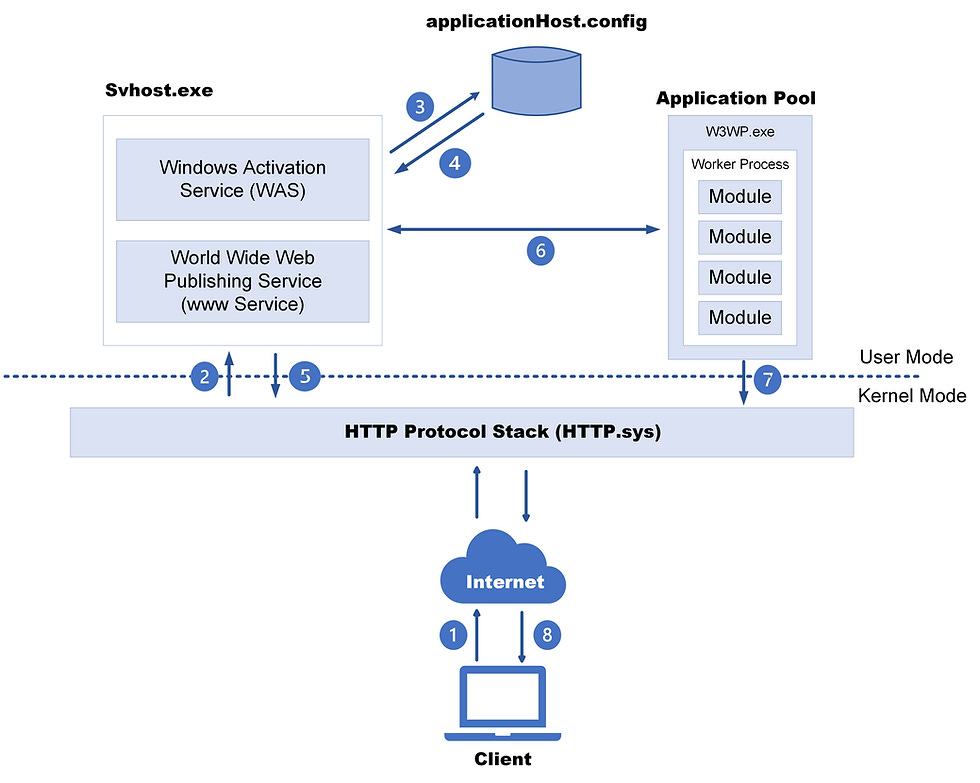
I used to think these three were basically the same topic:
Windows Service
Kestrel
HTTP.sys
I thought:
“They’re all just ways to host my .NET API, right?”
That misunderstanding cost me a full day in debugging.
Because they are not the same layer.
They solve different problems.
And until you understand the layering, you’ll keep building apps that run on your laptop… but fail on the server.
This is my real story of how I finally understood it — and how you can implement each one properly.
For content overview videos
https://www.youtube.com/@DotNetFullstackDev
The real requirement that started it all
My project had a very normal enterprise requirement:
Every night, files are dropped into a folder (CSV/Excel)
A service should pick them up, validate them, and push them into SQL
Operations team wants a simple internal API endpoint:
“What files were processed today?”
“What failed?”
“How many rows were inserted?”
The server is Windows.
Nobody wants IIS complexity unless needed.
Security team later asks: “We want Windows authentication.”
So I ended up using all three:
Windows Service (for the worker)
Kestrel (for a simple API)
HTTP.sys (when Windows-auth + enterprise constraints came in)
Part 1 — Windows Service (Worker)
Why I needed it (and why console apps are a trap)
My first build was a console app.
It ran perfectly.
But the moment I:
closed the window
logged out
restarted the server
…the processing stopped.
That’s when I learned the key difference:
A console app is “someone running it”.
A Windows Service is “Windows running it”.
A Windows Service is designed for:
automatic start at boot
running without a logged-in user
clean stop/restart control
monitoring and recovery rules
Basically: production reliability.
Implementation — Step-by-step with real explanations
Step 1 — Create a Worker Service project
dotnet new worker -n FileProcessorService
cd FileProcessorService
Why this template?
Because this template is not “just code that runs.” It gives you:
a hosted lifecycle (start/stop)
built-in dependency injection
structured logging
a background processing model designed for servers
This is the correct base for anything that must run 24/7.
Step 2 — Add Windows Service integration
dotnet add package Microsoft.Extensions.Hosting.WindowsServices
What does this package actually do?
Without this package, your worker is just a normal .NET process.
With this package:
your app understands Windows Service Control Manager (SCM)
it receives Start, Stop, Shutdown signals properly
it behaves like a real service (not like a console app pretending to be one)
This is the difference between:
“I can run it”
and“IT can operate it”
Step 3 — Configure Program.cs (and why each line matters)
using Microsoft.Extensions.Hosting;
using Microsoft.Extensions.Logging;

IHost host = Host.CreateDefaultBuilder(args)
    .UseWindowsService(options =>
    {
        options.ServiceName = "FileProcessorService";
    })
    .ConfigureLogging(logging =>
    {
        logging.ClearProviders();
        logging.AddConsole();   // useful during local debugging
        logging.AddEventLog();  // useful when running as service
    })
    .ConfigureServices(services =>
    {
        services.AddHostedService<Worker>();
    })
    .Build();

await host.RunAsync();
Let me explain what’s happening here like I wish someone explained to me:
CreateDefaultBuildersets up the standard hosting environment:configuration (appsettings.json + environment variables)
dependency injection container
logging pipeline
UseWindowsServicetells the host:“Don’t run like a console app”
“Run as a Windows service with SCM integration”
Logging:
AddConsole()helps you when you run locally (dotnet run)AddEventLog()is critical because once it runs as a service, you won’t see console output.
Without EventLog, you’ll feel blind in production.
Step 4 — Write Worker.cs correctly (this is where most people mess up)
using Microsoft.Extensions.Hosting;
using Microsoft.Extensions.Logging;

public sealed class Worker : BackgroundService
{
    private readonly ILogger<Worker> _logger;

    public Worker(ILogger<Worker> logger) => _logger = logger;

    protected override async Task ExecuteAsync(CancellationToken stoppingToken)
    {
        _logger.LogInformation("Service started at {time}", DateTimeOffset.Now);

        while (!stoppingToken.IsCancellationRequested)
        {
            try
            {
                _logger.LogInformation("Checking folder for new files...");
                ProcessFiles();
            }
            catch (Exception ex)
            {
                _logger.LogError(ex, "File processing failed");
            }

            await Task.Delay(TimeSpan.FromMinutes(5), stoppingToken);
        }

        _logger.LogInformation("Service stopping at {time}", DateTimeOffset.Now);
    }

    private void ProcessFiles()
    {
        // Real implementation:
        // - scan folder
        // - lock file while processing
        // - validate and parse rows
        // - insert into SQL
        // - move file to Processed/Failed folders
    }
}
Why the CancellationToken matters so much?
Because when Windows stops a service, it doesn’t “kill it immediately.”
It sends a stop request.
If your code ignores cancellation:
your service takes too long to stop
it may get force-killed
it may corrupt processing state
This is how production issues happen.
Step 5 — Publish for deployment
dotnet publish -c Release -r win-x64 --self-contained false -o C:\Services\FileProcessorService
Why publish?
Because servers should not build your project.
Servers should run compiled artifacts.
Publishing creates the final executable + dependencies in a clean folder.
Step 6 — Install as Windows Service
PowerShell (Admin):
New-Service `
  -Name "FileProcessorService" `
  -BinaryPathName "C:\Services\FileProcessorService\FileProcessorService.exe" `
  -DisplayName "File Processor Service" `
  -StartupType Automatic
Now Windows owns it.
Your app becomes an operating system-managed process.
Step 7 — Start and validate
Start-Service FileProcessorService
Get-Service FileProcessorService
Then check logs:
Windows Event Viewer → Windows Logs → Application
This step matters because:
most failures happen at startup due to config/path permissions
EventLog is where you’ll find the truth
Part 2 — Kestrel (Web API)
Why I used it first for the internal status API
Once the worker was stable, Ops team asked:
“Can we have an endpoint to see status?”
I didn’t need enterprise auth initially.
I just needed:
/health/processed-files/today/failed-files/today
For this, Kestrel is perfect.
What Kestrel really is
Kestrel is the default web server inside ASP.NET Core.
It is:
fast
modern
easy
cross-platform
It listens directly on a port like
http://localhost:5070
.
Implementation — Step-by-step with explanation
Step 1 — Create Web API
dotnet new webapi -n FileStatusApi
cd FileStatusApi
Step 2 — Make it run as Windows Service
dotnet add package Microsoft.Extensions.Hosting.WindowsServices
Step 3 — Configure Program.cs
var builder = WebApplication.CreateBuilder(args);

builder.Host.UseWindowsService(options =>
{
    options.ServiceName = "FileStatusApiService";
});

builder.Services.AddControllers();

var app = builder.Build();

app.MapGet("/health", () => Results.Ok("OK"));
app.MapControllers();

app.Run();
Key understanding:
Windows Service here controls lifetime.
Kestrel controls HTTP serving.
Different jobs. Same process.
Step 4 — Set explicit port (don’t gamble)
appsettings.json:
{
  "Kestrel": {
    "Endpoints": {
      "Http": {
        "Url": "http://localhost:5070"
      }
    }
  }
}
Why explicit?
In production you need predictability:
firewall rules depend on known ports
monitoring depends on known endpoints
avoiding port collisions requires control
Step 5 — Publish & install like earlier
dotnet publish -c Release -r win-x64 -o C:\Services\FileStatusApi
New-Service `
  -Name "FileStatusApiService" `
  -BinaryPathName "C:\Services\FileStatusApi\FileStatusApi.exe" `
  -StartupType Automatic
Test:
http://localhost:5070/health
At this point, I thought: “Done.”
Then security came in.
Keep the Momentum Going — Support the Journey
If this post helped you level up or added value to your day, feel free to fuel the next one — Buy Me a Coffee powers deeper breakdowns, real-world examples, and crisp technical storytelling.
Part 3 — HTTP.sys
Why Kestrel wasn’t preferred in my enterprise environment
Security requirement changed everything:
“Use Windows Authentication. Domain users only.”
Now, yes — you can do Windows Auth with Kestrel, but in many enterprises:
infrastructure teams prefer OS-level HTTP handling
they want URL reservations
they want certificate bindings controlled centrally
they want kernel-mode handling
That’s where HTTP.sys comes in.
What HTTP.sys really is
HTTP.sys is Windows’ own HTTP stack.
It’s not “a library web server.”
It is an OS feature.
That means:
Windows controls the port
Windows controls auth
Windows controls TLS binding
Your app hooks into it.
Implementation — Step-by-step with explanation
Step 1 — Enable HTTP.sys hosting in Program.cs
using Microsoft.AspNetCore.Server.HttpSys;

var builder = WebApplication.CreateBuilder(args);

builder.WebHost.UseHttpSys(options =>
{
    options.UrlPrefixes.Add("http://localhost:5090");

    options.Authentication.Schemes =
        AuthenticationSchemes.Negotiate |
        AuthenticationSchemes.NTLM;

    options.Authentication.AllowAnonymous = false;
});

var app = builder.Build();

app.MapGet("/secure", (HttpContext ctx) =>
{
    return $"Hello {ctx.User.Identity?.Name}";
});

app.Run();
What this does:
Requests authentication at the OS HTTP layer
Your API automatically sees the authenticated user
No tokens, no login screen, no custom auth middleware required
Step 2 — The critical step: URL reservation (URLACL)
netsh http add urlacl url=http://localhost:5090/ user=Everyone
Why is this needed?
HTTP.sys protects URL prefixes.
If your service runs under a normal account, Windows may block it from binding that URL unless reserved.
Without this:
service might fail on start
you’ll waste time blaming your code
but the problem is OS permission
Step 3 — Publish & install as service
Same as before.
Test:
http://localhost:5090/secureIt should return your domain identity automatically.
👉 I’ve shared the JWT Authentication Boilerplate for ASP.NET Core (.NET 8)
(Instant download, production-ready, no fluff)
Final clarity — the mental model I now use
If you remember only this, you’ll never get confused again:
Windows Service = “How my app runs”
Kestrel = “How my app serves HTTP (cross-platform)”
HTTP.sys = “How Windows serves HTTP (OS-level)”
Different layers.
Not competitors.